
 Doc to Form Quiz Maker
Stop Copy-Pasting.
Start Teaching.
Turn any Google Docs™ into a fully-functional Google Form™ Quiz. Stop wasting hours copying and pasting questions one by one.
Doc to Form Quiz Maker is an advanced Google Docs™ add-on that:
Intelligently identifies
multiple-choice, checkboxes, and short-answer questions.
Seamlessly extracts
your inline images and renders complex mathematical equations.
Instantly generates
a ready-to-use, auto-graded Google Form™ quiz.
No more manual entry. No more formatting headaches.
3 Steps to automate the Google Form™
generation from the document
Add Questions
Write or paste your questions into a blank Google Docs™.
Launch the add-on
Run the add-on and your quiz form will be created automatically. Just review and publish.
What Makes it Powerful
Lightning Speed
What used to take an hour now takes 60 seconds.
Smart Detection
Automatically recognizes questions type, options (A, B, C, D), and correct answers.
Secure & Private
Runs entirely inside your Google account. No external storage. Approved by Google Workspace Marketplace.
How to Install and Use
Getting started takes less than a minute
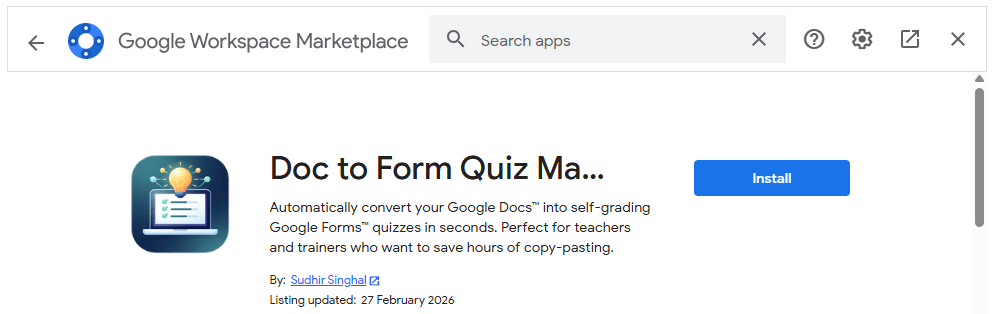
Install from Google Workspace Marketplace
Click the “Install” button on our Google Workspace Marketplace add-on page.
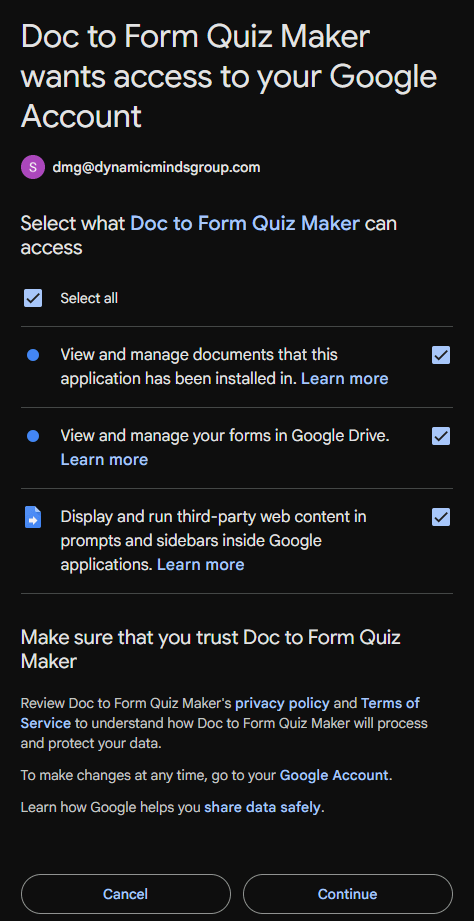
Grant Permissions
Google will ask you to choose your Google account and grant permissions to create form on your Drive
Note: Please make sure to allow all requested permissions so the add-on can successfully create and save the quizzes in your account.
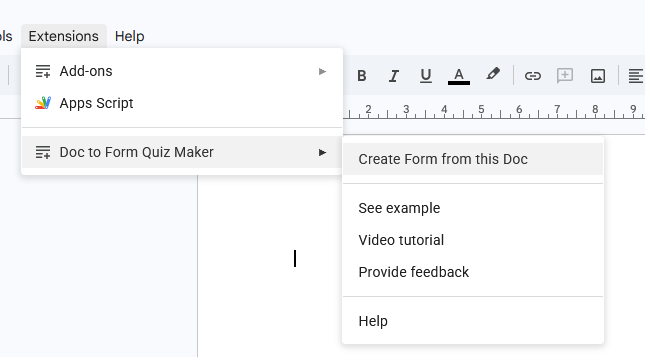
Refresh and Get Ready to Use
Open any Google Doc™ (or create a new one). Refresh the document page to ensure the add-on loads properly. Then, click Extensions > Doc to Form Quiz Maker > Create Form from this Doc.
Note: Make sure to add the questions first to generate the quiz form.
Format Questions (example given here)
Write or paste your questions into a blank Google Doc™. For the Add-on to recognize your questions perfectly, write them in the format given below:
Questions: Start with “Q”, a number, and a period (e.g., Q1., Q2.).
Options: Place each option on a new line, starting with A., B., C., and D.
Answer Key: Provide the correct answer on a new line starting with “Answer:”.
Example 1: Multiple Choice Question
Q1. What is the largest planet in our solar system?A. Earth
B. Saturn
C. Jupiter
D. Neptune
Answer: C
Example 2: Short Answer Question
Q2. What is the chemical symbol for water?Answer: H2O
(2 points)
Example 3: Math & Scientific Equations
(Enclose your math in dollar signs (as per Latex format) and the add-on will do the rest)Q3. Solve the following quadratic equation for $x$:
$x^2 – 5x + 6 = 0$
A. $x = 2, x = 3$ (Correct)
B. $x = -2, x = -3$
C. $x = 1, x = 6$
D. $x = -1, x = -6$
Explanation: Factoring the equation gives $(x-2)(x-3) = 0$.
Example 4: Adding Images
Q4. Identify the type of triangle shown in the image below:[Paste your image right here in the Google Doc]
A. Isosceles
B. Equilateral
C. Scalene
D. Right-angled
Answer: B
Test the Add-on (Sample Questions Text):
Copy and paste the text below into a blank Google Doc™, then run the Doc to Form Quiz Maker to see it in action:
Solar System Quiz

Q1. What is the largest planet in our solar system?
A. Earth
B. Saturn
C. Jupiter
D. Neptune
Answer: C

Q2. Which planet is known as the Red Planet?
A. Venus
B. Mars
C. Jupiter
D. Saturn
Answer: B
Use Advanced AI Prompt (optional)
Struggling to write high-quality questions? Copy our Expert Educator Prompt, given in the next section, into Gemini or ChatGPT or any AI model. Get high quality conceptual understanding based question with distractions based on common misconceptions.
Copy the generated questions directly into a Google Docs™ and use the add-on to convert it into a quiz.
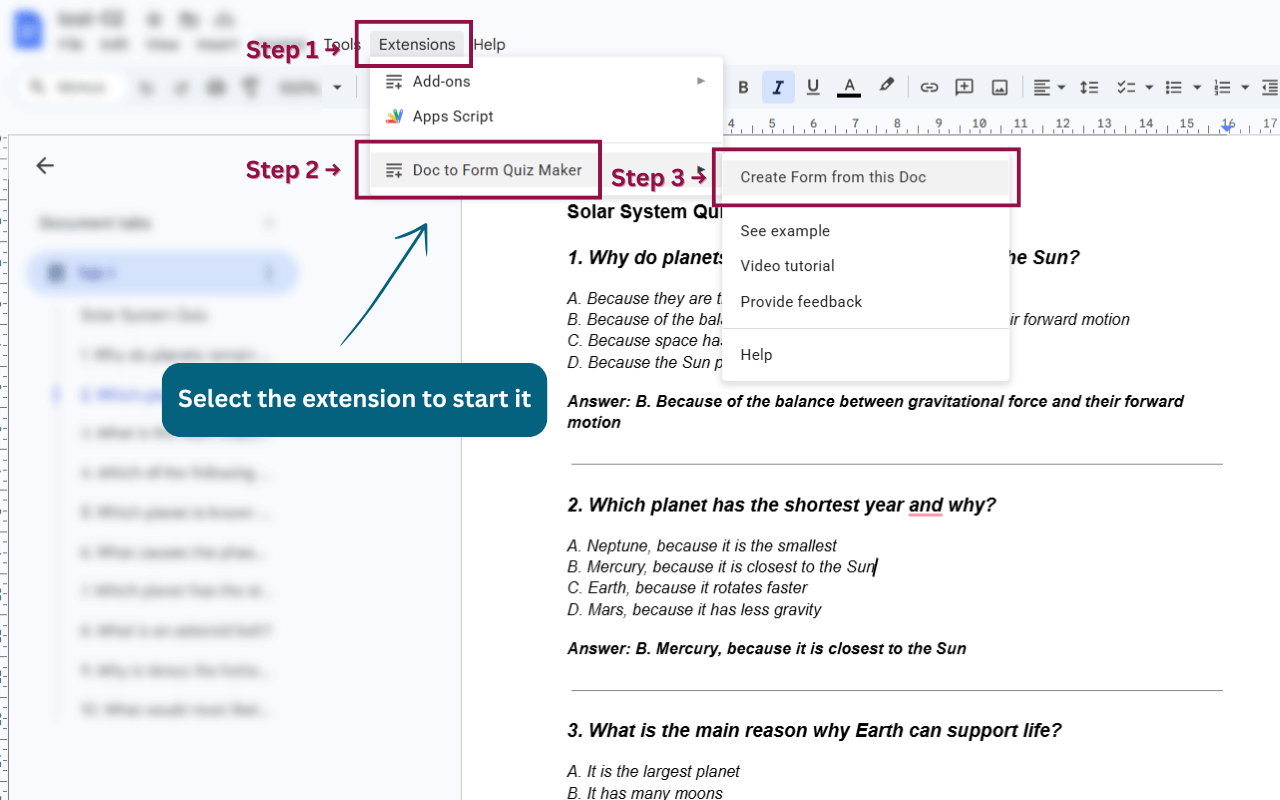
Launch the Add-on
To launch the magic:
Go to Extensions → Doc to Form Quiz Maker → Create Form from the Doc
Review and Publish the Quiz Form
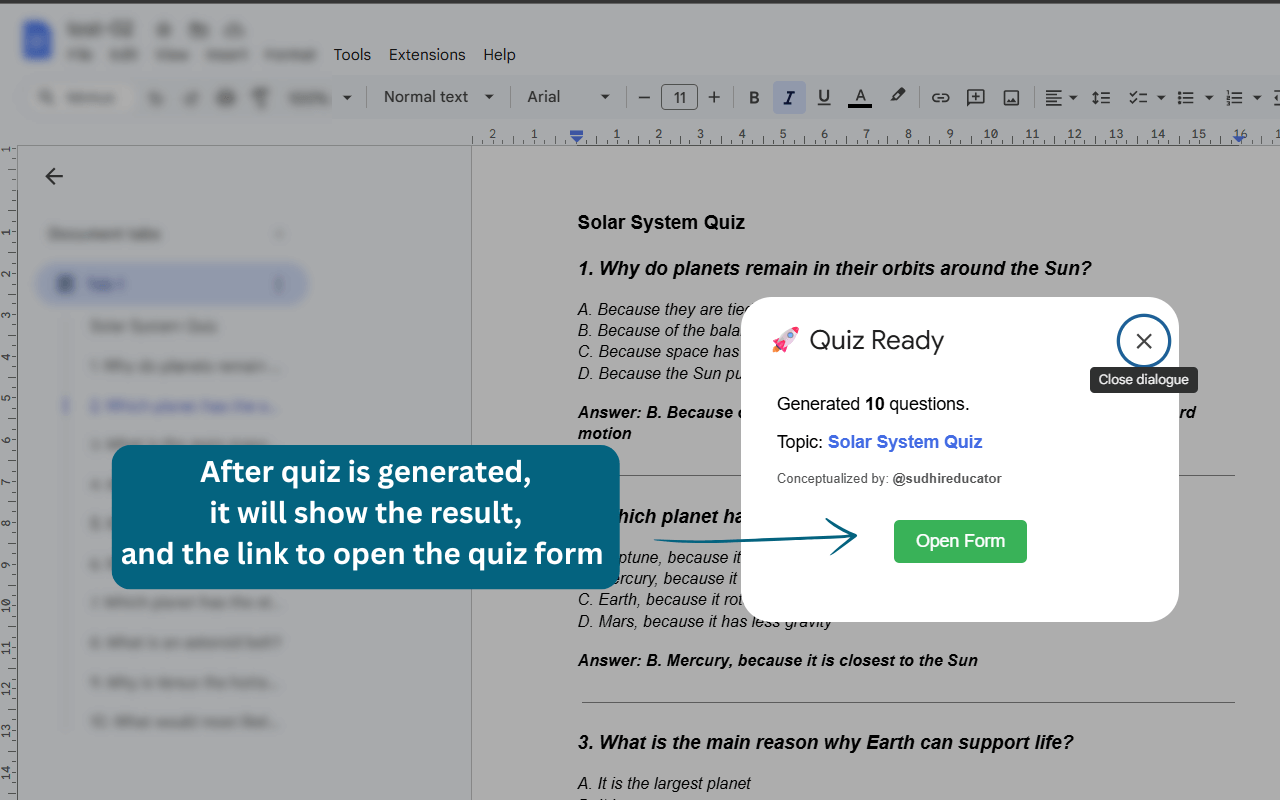
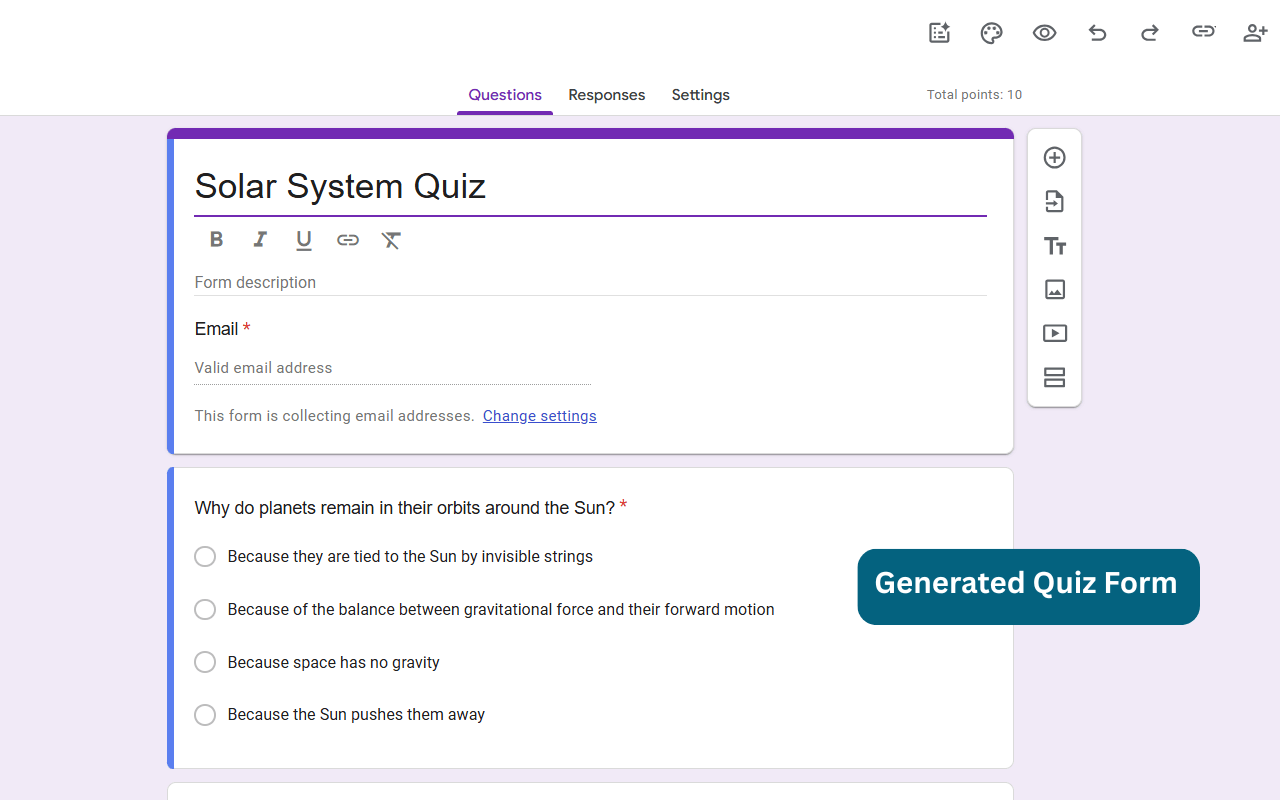
Your Google Form™ Quiz is generated automatically. A pop-up will appear with the result and an ‘Open Form’ button to open the generated quiz.
Review the quiz and publish the form.
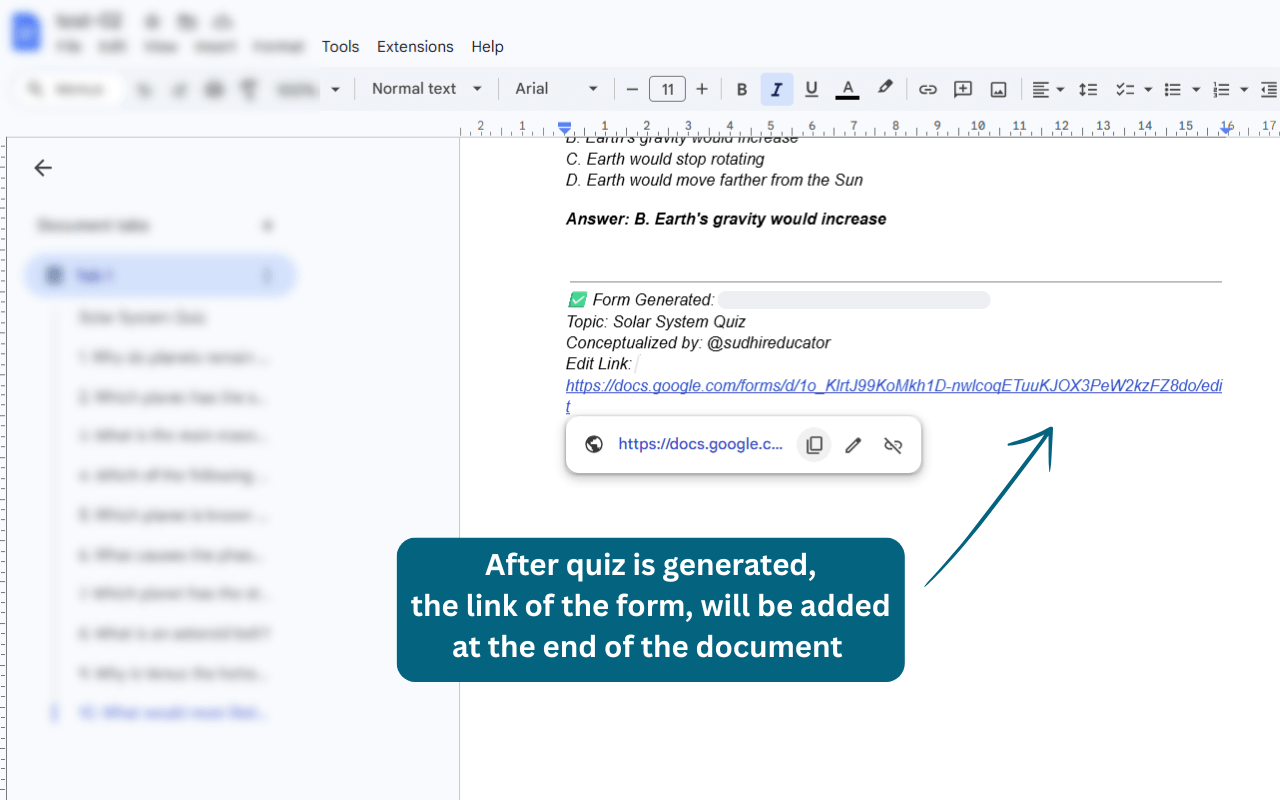
The generated quiz form link is added at the end of your document as well.
Pro Tip: By default, the generated quiz form is set to release marks as ‘Later, after manual review’. For auto-release marks, update the form settings manually.
For Generating Good Quality Quiz Questions
Struggling to write high-quality questions? Copy our Expert Educator Prompt into Gemini or ChatGPT or any AI model. Give the values of the required parameters, highlighted in square brackets [ ].
Act as an expert educator in subject [subject] and Google Forms quiz designer.
Generate [10] high-quality multiple-choice questions (MCQs) on the topic [topic] for grade [mention the grade] students.

Assessment Design Requirements:
• Questions must emphasize conceptual understanding, application, and critical thinking, not rote memorization.
• Include a balanced mix of:
○ Conceptual questions
○ Application-based and real-life scenario questions
○ Reasoning-focused questions

• Distractors must be plausible and based on common student misconceptions.
• Language should be clear, age-appropriate, and unambiguous.
• Each question must be multiple-choice only (4 options: A, B, C, D).
• Only ONE correct option per question.
• Avoid images, tables, or special formatting.
• Questions must be suitable for quiz mode with auto-grading.

Output Format & Strict Structure:
Q1. [Insert Question Text]
A. [Option 1]
B. [Option 2]
C. [Option 3]
D. [Option 4]
Answer: [Correct Letter]

Quality Expectations:
• Maintain progression from easy → moderate → challenging.
• Align with standard school curriculum [CBSE / ICSE / IB / State Boards].
• Avoid trivial or overly obvious questions.

Make sure the user has given the subject, topic and grade before generating.
Example Prompt for generating questions using AI:
Act as an expert educator in subject science and Google Forms quiz designer. Generate 10 high-quality multiple-choice questions (MCQs) on the topic solar system for grade 10 students.
Assessment Design Requirements:
• Questions must emphasize conceptual understanding, application, and critical thinking, not rote memorization.
• Include a balanced mix of:
○ Conceptual questions
○ Application-based and real-life scenario questions
○ Reasoning-focused questions
• Distractors must be plausible and based on common student misconceptions.
• Language should be clear, age-appropriate, and unambiguous.
• Each question must be multiple-choice only (4 options: A, B, C, D).
• Only ONE correct option per question.
• Avoid images, tables, or special formatting.
• Questions must be suitable for quiz mode with auto-grading.
Output Format & Strict Structure: You MUST adhere strictly to the following vertical format. Each question, each individual option (A, B, C, D), and the final answer MUST be placed on its own separate line. Do not write options horizontally on the same line.
Example structure to follow exactly:
Q1. [Insert Question Text]
A. [Option 1]
B. [Option 2]
C. [Option 3]
D. [Option 4]
Answer: [Correct Letter]
Quality Expectations:
- Maintain progression from easy → moderate → challenging.
- Align with standard school curriculum CBSE Board.
- Avoid trivial or overly obvious questions.
Make sure the user has given the subject, topic and grade, if not specified, then prompt the user to provide them before generating.
Made by educators,
for educators.

"Watch a teacher build a Google Form quiz by hand: question by question, option by option, answer key at the end. It is an hour of copy-paste for something a machine can read in seconds. That hour belongs back in the classroom."
Frequently asked.
Why does the add-on ask for permissions during installation?
The add-on requires very basic permissions to function. It needs permission to connect to your Google Forms™ app so it can automatically generate the quiz, and it needs access to your Google Drive™ so it can safely save the newly created Form directly into your account.
Will the add-on read all of my other Google Docs™ or files?
Absolutely not. The add-on uses a strict "Current Document Only" permission. It can strictly only read the text of the single, specific document you have actively opened the add-on inside of. It cannot access, see, or read any other files in your Google Drive™. Your data is entirely safe and private.
I installed the add-on, but when I open the menu, I only see a "Help" option. How do I fix this?
This is a common Google security measure that happens for two reasons.
🔹 Fix 1: Simply refresh your Google Doc web page and check the Extensions menu again.
🔹 Fix 2: If refreshing doesn't work, Google's system is likely confused because you are logged into multiple Google accounts in the same web browser. To fix this, open a new "Incognito" or "Private Browsing" window, log in using only the single Google account you want to use, and open your document.
What types of questions does the add-on support?
The add-on is highly versatile and supports a wide variety of assessment formats:
- Multiple Choice Questions (MCQs): Standard single-choice questions (Radio buttons).
- Multiple Correct Answers: If you provide multiple correct options, it automatically converts the question into Checkboxes.
- Short Answer Questions: Questions without options will automatically be formatted as text-input fields.
- Rich Media: It seamlessly extracts Inline Images and securely processes complex Mathematical Equations into high-quality images.
Does it support mathematical equations or scientific formulas?
A: Yes! This is one of our most powerful features. You can type equations directly into your Google Doc using standard LaTeX formatting enclosed in dollar signs (e.g., $E = mc^2$ or $\frac{1}{2}$). The add-on will automatically and securely render these into crisp, beautiful images in your Google Form.
Can I include images in my quizzes?
Absolutely. Just paste your image directly into your Google Doc inside the question text or as an option. The add-on will safely extract the image, temporarily process it, and attach it to the correct question or choice in your final Form.
Are the generated quizzes automatically graded?
Yes! As long as you include the "Answer: [Letter]" key in your document, the add-on automatically sets the correct answer and assigns point values in the Google Forms™ settings. Your quiz is ready to grade itself immediately.
Pro Tip: By default, the generated quiz form is set to release marks as 'Later, after manual review'. For auto-release marks, update the form settings.
How do I assign point values or add explanations?
You can set a default point value for the whole quiz when you run the add-on.
If you want a specific question to have a different weight, just add (2 points) or [5 marks] at the end of the question text.
You can also add Explanation: [your text] after your options, and it will automatically be added as feedback for students!
Privacy Policy
Doc to Form Quiz Maker’s use and transfer of information received from Google APIs adheres to the Google API Services User Data Policy, including the Limited Use requirements.
Your data is processed securely to automate your quiz generation. The add-on runs directly inside your Google Workspace™ environment. We do not store your documents on external databases, and your personal information is never shared with or sold to third parties. [View Full Privacy Policy]
Ready to save hours of manual typing?
Stop Building Quizzes Manually
Join thousands of educators who have ditched the manual work. Install Doc to Form Quiz Maker and see the magic for yourself.
Install from Google Workspace Marketplace